Graphical Interface
- Mainly to develop workflows
- Functionality organized into different tabs
- Tabs can be moved around and split at will
- Defaults to showing chat, settings and outputs
- Layout not persisted
Primary tabs
Workflow
- The heart of the app
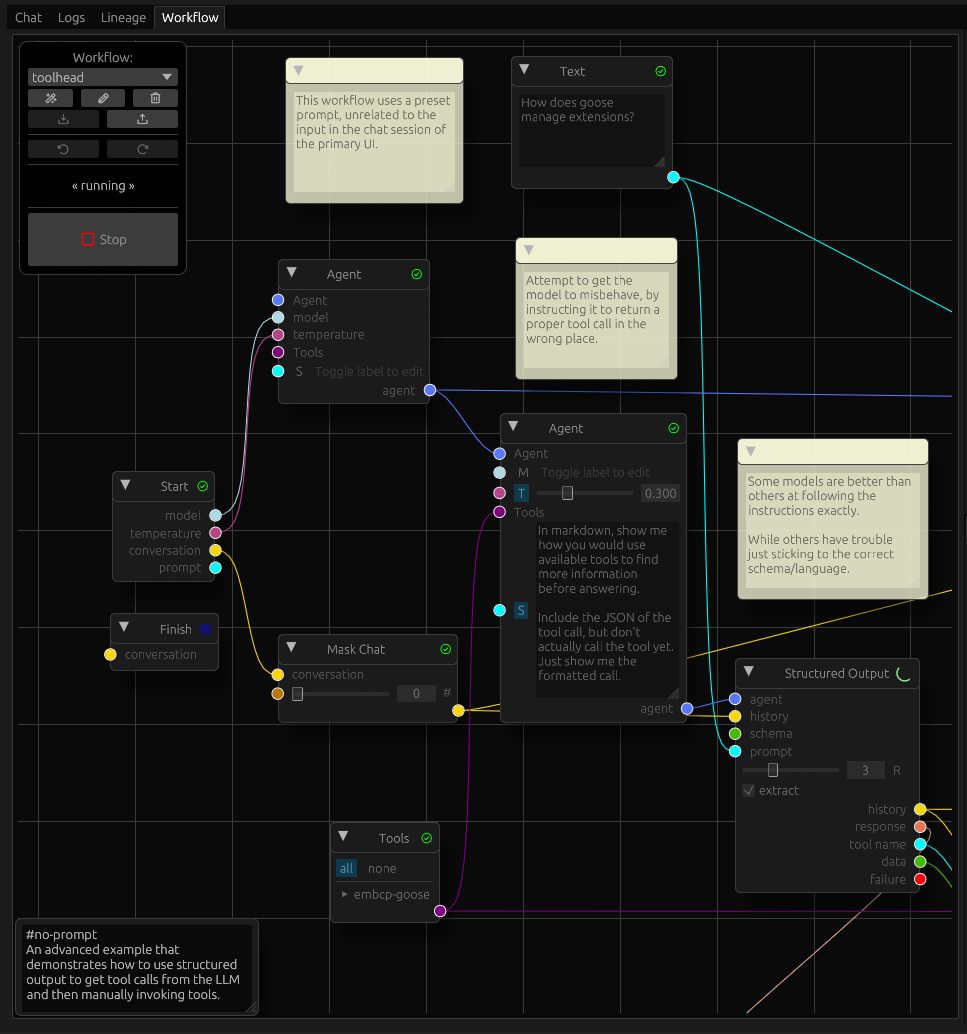
- The main canvas shows nodes connected by wires
- Nodes have input pins on the left and output pins on the right
- In between are labels and controls for each pin
- Some nodes also have controls not associated with a pin
- In addition to nodes, workflow can have comment
- Appear as yellow sticky notes
- Serve no purpose other than communicating with people viewing workflow
- Can be collapsed if distracting
- Press ‘?’ for a list of keyboard shortcuts
Navigation
- Drag the canvas to pan
- Ctrl-scroll to zoom in/out
- Double click zooms to fit the workflow
- Right-clicking on the canvas will show a menu to create nodes
- Right clicking on a node gives some contextual actions
Control Palette
- Control palette floats on the top-left by default
- It can be moved but not resized
- The drop-down switches between different workflows
- When switching, edits to the old workflow are stashed in memory
- When you switch back, it should restore the last edit even without autosave
- Each workflow has a separate edit history
- The “Rename” button allows you to change the name of the current workflow
- The “New” button will create an empty workflow (with a random name)
- The Import/Export buttons allow you to bring workflows in and out of the app
- Duplicate names will be timestamped
- You can Delete workflows to declutter
- Workflows are automatically backed up to disk
- Backups can be imported
- Undo/redo lets you see or recover previous edits
- On activating either button, the editor switches to the frozen state
- While frozen, you can view, pan and zoom but not edit workflows
- To resume editing, click the frozen button
- While frozen, autosave has no effect
- The “Run” button will run the workflow
- While the workflow is running, the editor is essentially frozen
- You can interrupt the run by pressing on “Stop”
- It may take a while to stop, if the runner is in the middle of a long operation
- Streaming mode is more responsive Stop commands
Multi-select
- Can select multiple nodes using the mouse
- Per-node selection
- Shift-click adds to selection
- Ctrl-click removes from selection
- Ctrl-Shift-click to exclusive select
- Box selection
- Shift-drag adds to selection
- Ctrl-shift-drag removes from selection
- Multiple nodes can be disabled or removed at a time
- If the current node is not in the selection, only affects it
- If current node is part of the selection, all selected nodes affected
Incremental execution
- Pressing the Run button will always start the workflow with a blank slate
- Using the Reset/Resume shortcut (
Ctrl+R) will trigger an incremental run - Only available in a top-level workflow
- subgraphs cannot be partially run, yet
- Useful for developing a workflow in an edit/evaluate loop
- New nodes will always run during Resume
- Nodes that have been edited are reset automatically
- Edits inside a subgraph reset the container node in the parent up to the root
- If
cascadesetting is on, all dependents also reset
- Reset by shortcut behavior depends on selected nodes, node under pointer,
cascadesetting- If no node under pointer, selection is reset
- If node under pointer is not in the selection, only that node is reset
- If node under pointer is in selection, then all selected nodes are reset
- If cascade is enabled, all nodes downstream from reset nodes are also reset
Chat
While this application is not primarily a chat client, many workflows involve chat interactions. As such, there is a tab with limited chat functionality.
Not only does it display old messages, but if streaming mode is enabled in Settings, then partial outputs from the language model will appear here. In addition to text, the conversation history will show image thumbnails and render markdown and mermaid diagrams.
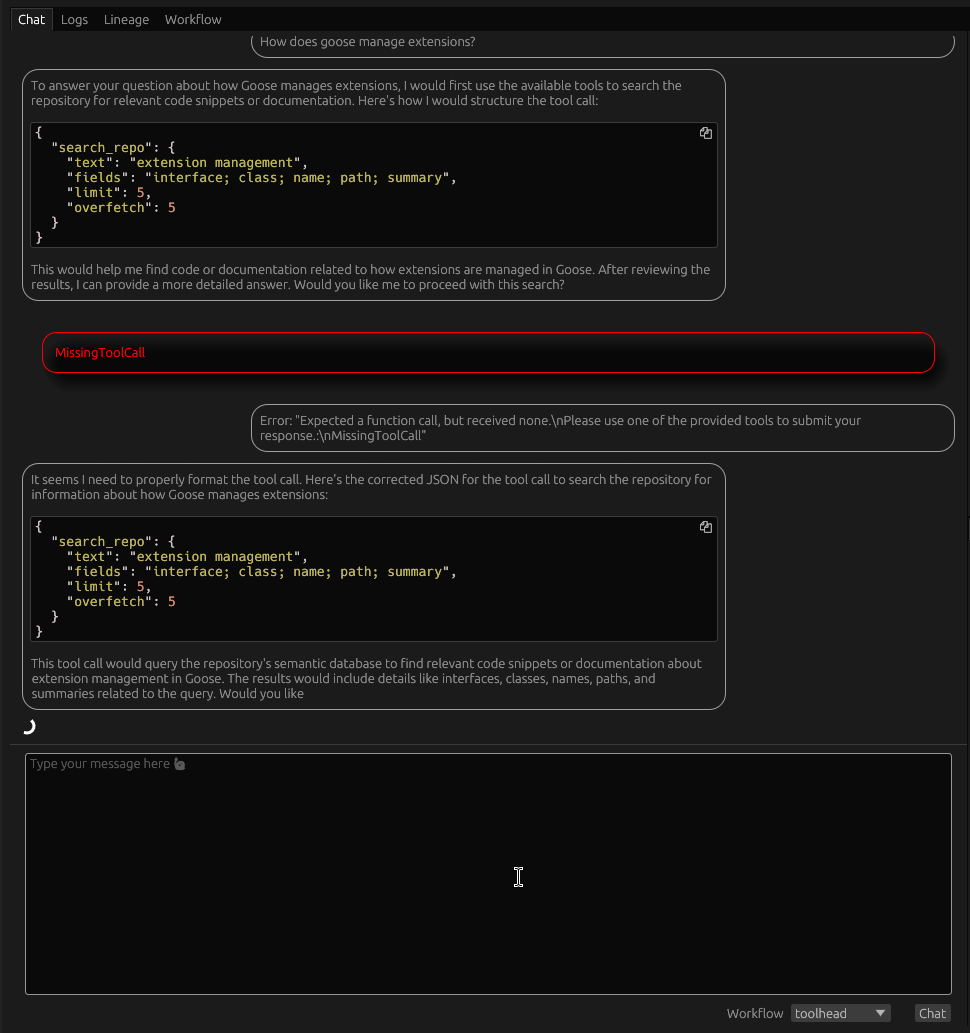
Inside the central panel, you can branch the conversation by clicking on the branch button.
In the input panel at the bottom, you can enter the prompt change the active workflow. Left of the prompt is a gallery for images to include in the message. You can load images from disk or link to them by URL.
Logs
- Shows recent logs for to and from the LLM provider only
- Some provider implementations do not log or do not tag their logs
- Will not show up here
- For general application logs, must use console
Lineage
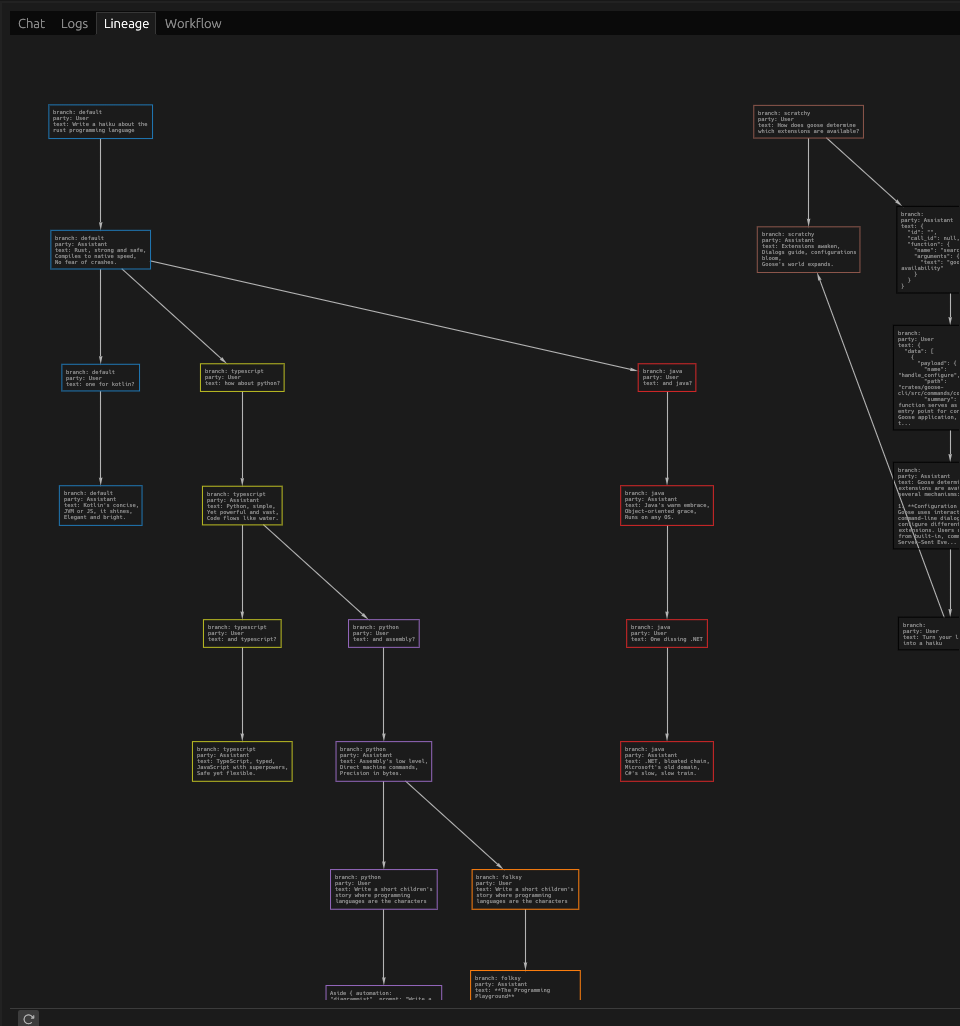
- Shows the branch history at a message level
- View-only – cannot modify the session or workflow
Secondary tabs
Settings
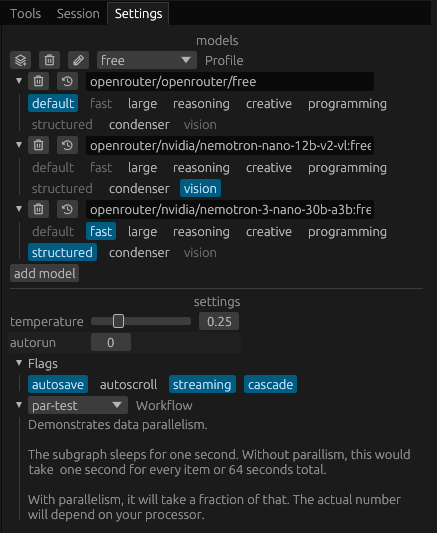
Model profiles can be defined on the settings tab.
Multiple flags control how the UI responds to input and events
autorunscontrols chain execution- Toggle buttons are highlighted when active, or neutral when inactive
- “autosave” will automatically save edits to the workflow
- If disabled, you will have to manually save from the command palette
- “autoscroll” will scroll the chat and log windows when a workflow is running
- no effect when idle
- “streaming” will toggle between blocking and streaming mode
- When streaming is disabled, you will not see messages until they are complete
- Streaming mode will show partial messages as the provider sends data
- Logs tab becomes pretty messy with streaming enabled
You can use the workflow setting to select the workflow that will be run when a prompt is submitted on the Chat tab. A description of the workflow is displayed.
Tools
- Add and examine tools and tool providers
- Tool providers have two types: stdio and http
- stdio providers run locally on your computer,
- but may connect to external services
- lower latency
- simplified security
- http providers run over the network
- though you can host them locally
- more flexibility
- security depends on external service implementation
- List of providers as collapsible sections
- Clicking on the provider name will let you edit its settings
- Expanding/collapsing the section will show tools for a provider
- Clicking on a tool will give you information about the tool
Session
- Can switch/rename/delete sessions
- Can also import/export
- Shows the chat history branches in a tree
- Switch branches by clicking on any branch label
- Action buttons appear to the right of each branch
- Branches can be renamed in-place
- Promoting a branch switches its role with its parent
- Sibling branches become its children
- Branches can be pruned, deleting its messages up to the parent
- It’s easiest to see the effect of these operations in the Lineage tab
Outputs
- Outputs shows each workflow run with the outputs generated by it
- Outputs are created using an Output node
- Outputs can be saved using the action button to the right
- A run can be deleted entirely
- Runs and outputs are not persisted between sessions
- If you want to keep an output, you must save it manually