Introduction
- Create and run graphical workflows built around agents: LLM models and tools
- graphical refers to node graphs rather than visual interface
- Has a visual interface too
- Part of a suite of agent-centric tools
- Invokes models over API
- wide range of compatibility
- Tools exposed over MCP servers
- After editing, workflows can run using headless runner
- Useful for automated periodic or triggered tasks
- Can be called from other applications
Users
Installation
- Linux AppImage binary builds available under releases
- Download from Assets
- Runs on most common distributions
- Can run on Windows under WSL
- On NixOS requires nixGL and appimage-run
- Also available as source
- Only tested on Linux
- Process is fairly automated once build tool installed
- Need a terminal
- Install nix
- A package manager and build tool
- Can temporarily or permanently fetch multitude of utilities and apps
- Might need to add ~/.nix-profile/share to
XDG_DATA_DIRS
- Temporary git:
nix-shell -p git
- Get parent repo sources:
git clone --recurse-submodules https://github.com/patonw/refoliatecd refoliategit submodule update --init --recursive(only needed for updates)
- Install using nix-env:
nix-env --install -f . -A aerie.app- this takes a while the first time: must create a build environment
- More of a lunch break than a coffee break
- Can launch from command line or desktop environment
- Some desktops may require logging out to refresh app list
First steps
- Opens in with Chat tab and settings sidebar
- If send a prompt now, nothing happens
- No LLM provider configured
- Switch to the Workflow tab
- In the Workflow drop-down, select basic
- Doesn’t do anything useful, but has many notes
- Pay attention to the description box at the bottom left
- Can be scrolled and resized
- Click on “Run” to run the workflow
- Outputs appear in the output tab of the side panel
- Can view or save outputs
- From the workflow drop-down select chatty
- May look familiar:
- it’s the same as the default workflow but with a lot of comments
- You can edit this to customize simple chatting
- Can also edit the default flow, but changes are not persistent
- Running this should produce an error since provider is not configured
- May look familiar:
LLM Providers
- Provider is specified in the prefix of the model
- e.g.
openai/gpt-4owill connect to OpenAI API - API keys and must be supplied by environment variable
- No way to configure in the app. Bad practice regardless.
- Environment variable depends on provider
- Method to set variables depends on environment
- Some providers require additional settings like API host or base
- Refer to rig docs for more details
Examples
OpenRouter
- Environment:
OPENROUTER_API_KEY=sk-********
- model key:
openrouter/mistralai/devstral-2512:free
Mistral
- Environment:
MISTRAL_API_KEY=********
- model key:
mistral/labs-devstral-small-2512
Ollama
You typically won’t be setting an API key for ollama, since you’ll be managing this provider yourself. If you’re running ollama on the same machine with default port, you probably won’t need to set the API base URL. This is needed for instance if you’re running ollama on your desktop and working off your laptop or you have a headless deep learning server separate from your primary computer.
- Environment:
OLLAMA_API_BASE_URL=http://10.11.12.13:11434
- model key:
ollama/qwen3-coder:30b
Important
You must use
ollama pullto download any models before using them
Cleanup
- Uninstall via nix-env:
nix-env --uninstall aerie
- Sessions/workflows
- ~/.local/share/aerie/sessions
- ~/.local/share/aerie/workflows
- ~/.local/share/aerie/backups
- Configuration files ~/.config/aerie/*
- Uninstall nix
Developers
Setup
- Need a terminal (of course)
- If you already have a suitable build environment, try using it
- …otherwise, Install nix
- Focus on reproducible declarative builds
- Result should be the same on any machine
- Drawback is that it needs to recreate build environment on every machine
- Recommend setting up direnv also
git clonethe parent repositorycd refoliate/aerie- With direnv:
- Optional:
echo "dotenv" >> ~/.envrc echo "use nix" >> ~/.envrcdirenv allow- Do not check in .env and .envrc files - ignored anyhow
- Do not trust externally sourced .envrc files - security risk
- Can add API keys and other environment variables to either .env or .envrc
- Better to put them in .env to avoid reauthorizing after each edit
- Optional:
- without direnv:
- Need to run
nix-shell(no arguments) each time work with repo - Set environment variables manually or account-wide
- Need to run
Build/Run
cargo run -- --session issue-####- Enable logging:
RUST_LOG=aerie=debug RUST_BACKTRACE=full cargo ... - Headless workflow run:
cargo run --bin simple-runner -- \
  --temperature 0.3 \
  --model ollama/qwen3-coder:30b \
  --config <path-to-config> \
  tutorial/workflows/toolhead.yml
Customization
- Can add custom nodes by using this crate as a library
- Build and run an
Appin your binary - Configurable hooks provide some degree of customization
- See the
hello-nodeexample project
Custom Nodes
- Custom nodes must implement three traits:
DynNode,UiNodeandFlexNode DynNodedetermines behavior of the node under the graph runnerUiNodeallows for interactive editing of the node beyond connecting its pinsFlexNodeis marker trait that registers the node for deserialization- Must include the
#[typetag::serde]attribute
- Must include the
Graphical Interface
- Mainly to develop workflows
- Functionality organized into different tabs
- Tabs can be moved around and split at will
- Defaults to showing chat, settings and outputs
- Layout not persisted
Primary tabs
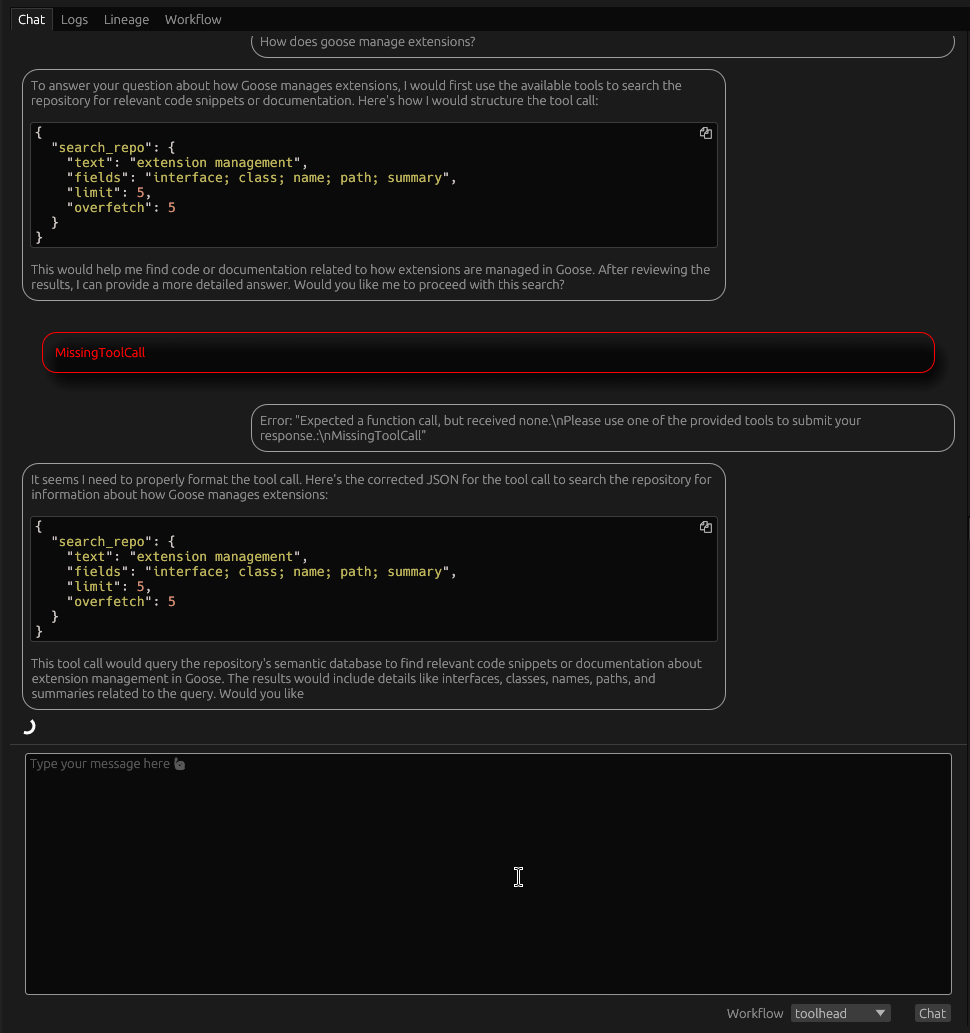
Chat
- Functionality as a chat client limited – not primary focus
- Helpful in interacting with workflows
- Can see generation in real-time during streaming mode
- Renders markdown and mermaid diagrams
- Branching conversations
Logs
- Shows recent logs for to and from the LLM provider only
- Some provider implementations do not log or do not tag their logs
- Will not show up here
- For general application logs, must use console
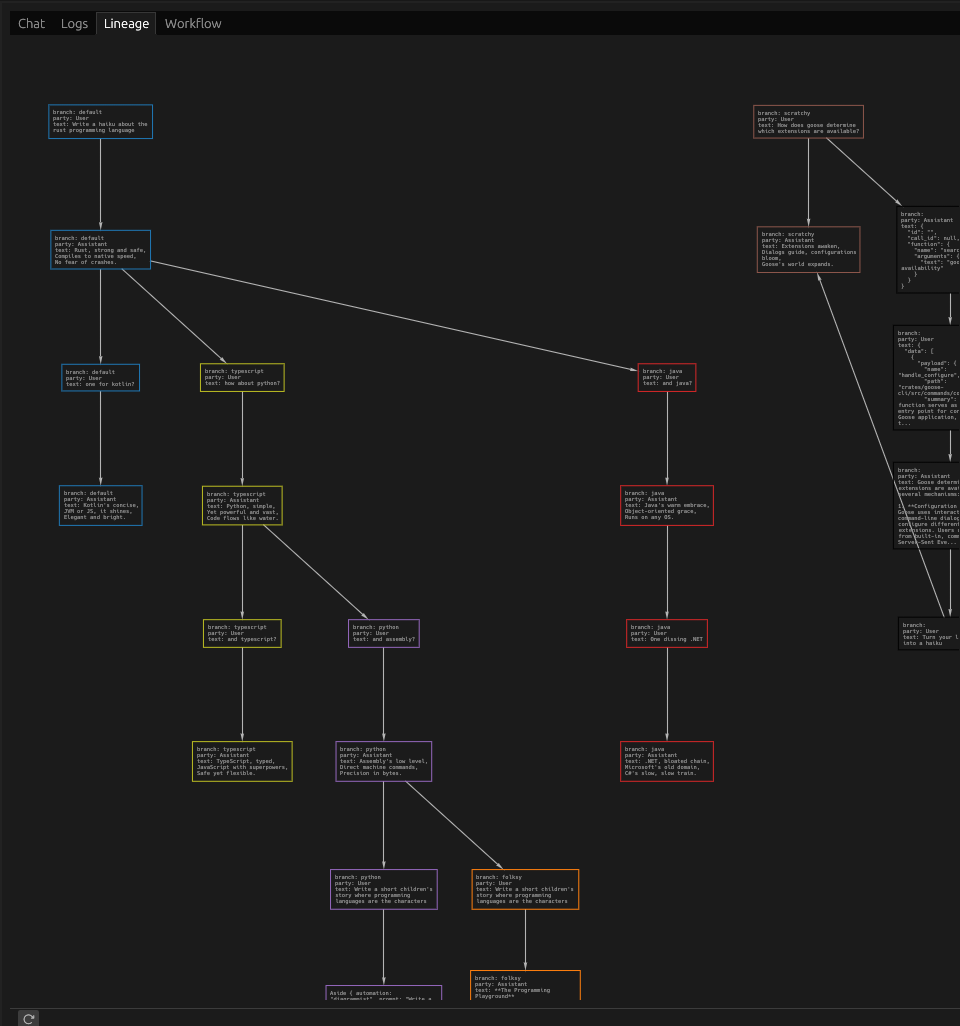
Lineage
- Shows the branch history at a message level
- View-only – cannot modify the session or workflow
Workflow
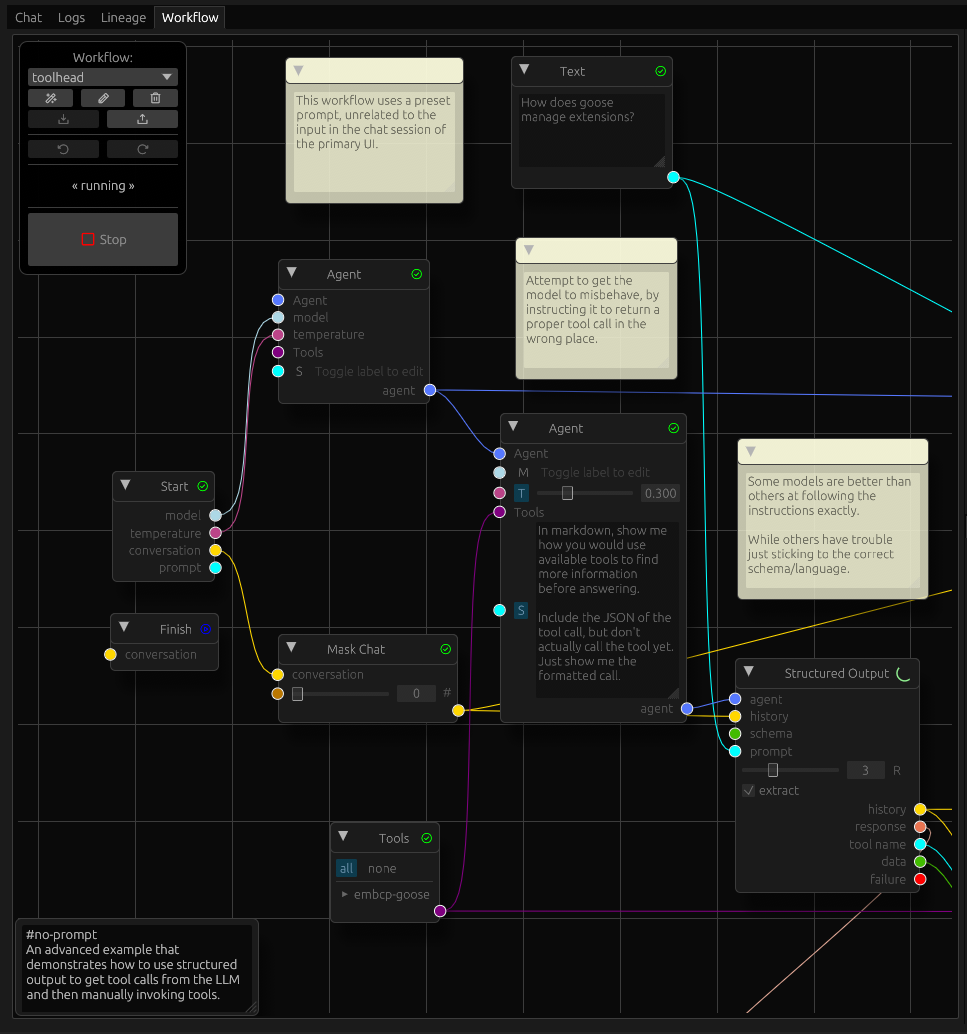
- The heart of the app
- The main canvas shows nodes connected by wires
- Nodes have input pins on the left and output pins on the right
- In between are labels and controls for each pin
- Some nodes also have controls not associated with a pin
- In addition to nodes, workflow can have comment
- Appear as yellow sticky notes
- Serve no purpose other than communicating with people viewing workflow
- Can be collapsed if distracting
- Press ‘?’ for a list of keyboard shortcuts
Navigation
- Drag the canvas to pan
- Ctrl-scroll to zoom in/out
- Double click zooms to fit the workflow
- Right-clicking on the canvas will show a menu to create nodes
- Right clicking on a node gives some contextual actions
Control Palette
- Control palette floats on the top-left by default
- It can be moved but not resized
- The drop-down switches between different workflows
- When switching, edits to the old workflow are stashed in memory
- When you switch back, it should restore the last edit even without autosave
- Each workflow has a separate edit history
- The “Rename” button allows you to change the name of the current workflow
- The “New” button will create an empty workflow (with a random name)
- The Import/Export buttons allow you to bring workflows in and out of the app
- Duplicate names will be timestamped
- You can Delete workflows to declutter
- Workflows are automatically backed up to disk
- Backups can be imported
- Undo/redo lets you see or recover previous edits
- On activating either button, the editor switches to the frozen state
- While frozen, you can view, pan and zoom but not edit workflows
- To resume editing, click the frozen button
- While frozen, autosave has no effect
- The “Run” button will run the workflow
- While the workflow is running, the editor is essentially frozen
- You can interrupt the run by pressing on “Stop”
- It may take a while to stop, if the runner is in the middle of a long operation
- Streaming mode is more responsive Stop commands
Multi-select
- Can select multiple nodes using the mouse
- Per-node selection
- Shift-click adds to selection
- Ctrl-click removes from selection
- Ctrl-Shift-click to exclusive select
- Box selection
- Shift-drag adds to selection
- Ctrl-shift-drag removes from selection
- Multiple nodes can be disabled or removed at a time
- If the current node is not in the selection, only affects it
- If current node is part of the selection, all selected nodes affected
Incremental execution
- Pressing the Run button will always start the workflow with a blank slate
- Using the Reset/Resume shortcut (
Ctrl+R) will trigger an incremental run - Only available in a top-level workflow
- subgraphs cannot be partially run, yet
- Useful for developing a workflow in an edit/evaluate loop
- New nodes will always run during Resume
- Nodes that have been edited are reset automatically
- Edits inside a subgraph reset the container node in the parent up to the root
- If
cascadesetting is on, all dependents also reset
- Reset by shortcut behavior depends on selected nodes, node under pointer,
cascadesetting- If no node under pointer, selection is reset
- If node under pointer is not in the selection, only that node is reset
- If node under pointer is in selection, then all selected nodes are reset
- If cascade is enabled, all nodes downstream from reset nodes are also reset
Secondary tabs
Settings
- Default model and temperature
- Provided to workflows which may or may not use them
- Some workflows may use multiple models in different agents
- models must be prefixed with a provider
autorunscontrols chain execution- Multiple flags control how the UI responds to input and events
- Toggle buttons are highlighted when active, or neutral when inactive
- “autosave” will automatically save edits to the workflow
- If disabled, you will have to manually save from the command palette
- “autoscroll” will scroll the chat and log windows when a workflow is running
- no effect when idle
- “streaming” will toggle between blocking and streaming mode
- When streaming is disabled, you will not see messages until they are complete
- Streaming mode will show partial messages as the provider sends data
- Logs tab becomes pretty messy with streaming enabled
- Note: implementation differs between streaming and blocking
- Headless runners will use blocking mode
Tools
- Add and examine tools and tool providers
- Tool providers have two types: stdio and http
- stdio providers run locally on your computer,
- but may connect to external services
- lower latency
- simplified security
- http providers run over the network
- though you can host them locally
- more flexibility
- security depends on external service implementation
- List of providers as collapsible sections
- Clicking on the provider name will let you edit its settings
- Expanding/collapsing the section will show tools for a provider
- Clicking on a tool will give you information about the tool
Session
- Can switch/rename/delete sessions
- Can also import/export
- Shows the chat history branches in a tree
- Switch branches by clicking on any branch label
- Action buttons appear to the right of each branch
- Branches can be renamed in-place
- Promoting a branch switches its role with its parent
- Sibling branches become its children
- Branches can be pruned, deleting its messages up to the parent
- It’s easiest to see the effect of these operations in the Lineage tab
Outputs
- Outputs shows each workflow run with the outputs generated by it
- Outputs are created using an Output node
- Outputs can be saved using the action button to the right
- A run can be deleted entirely
- Runs and outputs are not persisted between sessions
- If you want to keep an output, you must save it manually
Workflow Execution
The main point of creating agentic workflows is to run them in automated tasks outside of the UI.
- Use runners
- Currently only simple-runner implemented
- Very limited functionality/customization
- Needs a better name
- Runs from the console using file inputs
- Can output to the console or disk
- Will not automatically load settings or session data
- Workflow must be a path to a workflow file, not just a name
- Only tool providers in config can be used
- If output directory specified
- All outputs written to individual files
- otherwise, will print to console in single JSON object
- To use tools you must specify a config file
- Not loaded automatically
- Can run chained workflows using
autorunsparameter- Must specify a workflow store with
workstore - Workflows must call the chaining tool for successor
- Each run will output a new JSON document in console mode
- If outputting to directory, creates a subdir for each run
- Must specify a workflow store with
$ simple-runner --help
A minimalist workflow runner that dumps outputs to the console as a JSON object.

If you need post-processing, use external tools like jq, sed and awk.

Usage: simple-runner [OPTIONS] <WORKFLOW>

Arguments:
  <WORKFLOW>
          The workflow file to run

Options:
  -w, --workstore <WORKSTORE>
          Path to a workflow directory for chain execution

  -s, --session <SESSION>
          A session to use in the workflow. Updates are discarded unless `--update` is also used

  -c, --config <CONFIG>
          Configuration file containing tool providers and default agent settings

  -b, --branch <BRANCH>
          The session branch to use

      --update
          Save updates to the session after running the workflow

  -m, --model <MODEL>
          The default model for the workflow. Has no effect on nodes that define a specific model

  -t, --temperature <TEMPERATURE>


  -i, --input <INPUT>
          Initial user prompt if required by the workflow

          [aliases: --prompt]

  -o, --out-dir <OUT_DIR>
          Save outputs as individual files in a directory

  -a, --autoruns <AUTORUNS>
          Number of extra turns to run chained workflows

          [default: 0]

  -n, --next
          Prints an additional object containing the next workflow after the last run
$ simple-runner -- --temperature 0.3 --model ollama/qwen3-coder:30b --prompt "hmmm" --workstore ~/.local/share/aerie/workflows chaindrive --autoruns 3
{
  "prompt": "hmmm"
}
{
  "prompt": "hmmm\n\nHello, again!"
}
{
  "prompt": "hmmm\n\nHello, again!\n\nHello, again!"
}
{
  "prompt": "hmmm\n\nHello, again!\n\nHello, again!\n\nHello, again!"
}
Sessions
- Holds multiple branching conversations
- First startup, no session is active
- Conversation will not be saved
- Must choose session from Session tab
- Subsequent launches will use last session
- Runners will not use a session by default
- Must override with option
- Can create branches from existing chats
- Can switch between branches
- Also holds asides
- short unnamed branches created during a workflow
- allow tracing intermediate steps without polluting main conversation
- Sessions can be passed to runners to provide context to workflow
- Export a session from the UI
- the session with no name
- transient session will not be saved
- active on first run
- can be named with the “Rename” button to save
- changes will be lost when switching
Agents
- Language model with tools and context
- Memory can be provided as a tool
- In chat-driven paradigm, model must decide when to use tools
- Must select from all available tools at a time
- Limited context window on smaller models can cause confusion
- Workflow paradigm allows us to restrict tools and process results
- Can orchestrate multiple agents on subtasks
Tools
- Allow your agents to interact with the outside world
- Can retrieve information from the web or private data stores
- web search using public APIs
- memorization and recall
- check the weather forecast
- semantic search a vector store
- Some can execute actions, e.g.
- Send messages over a chat service
- running software on your computer
- approving/banning content in a moderation API
- ordering parts and supplies
- Anything that can be done by software can be turned into a tool
- Recently tools standardized around Model Context Protocol (MCP)
Providers
- Tools are supplied by tool providers
- MCP providers can run locally or remotely
- Local providers can perform actions on your computer
- External providers can integrate with various web services
Configuration
- Add various providers in the Tools tab
- Saved to configuration file
- Remote providers may require authorization
- Can specify an environment variable containing auth token
- Can specify timeout
Examples
MCP example (server-everything)
- A bit useless aside from verifying setup works
- Create a new STDIO tool
- command:
nix-shell - Arguments1:
-p
nodejs_22
--run
npx -y @modelcontextprotocol/server-everything
- command:
- Peruse the tool schemas
- Try using Parse JSON and Invoke Tool to call these manually
- You can use an agent with Structured Output to help with the arguments
Tavily
- Web search API geared optimized for agents
- 1000 free requests / month
- Can run MCP server locally or use hosted
- First sign up and get an API key from Tavily
- Define an environment variable for the API key
TAVILY_API_KEY=***
- Start the app and define a new HTTP tool
- URI:
https://mcp.tavily.com/mcp/?tavilyApiKey={{api_key}} - Auth Var:
TAVILY_API_KEY
- URI:
- App substitutes
{{api_key}}when issuing requests
EmbCP
- An example MCP server on top of Qdrant included in this repo
- You’ll need to index something yourself to get this running
- first run a qdrant server and create a collection
- Included helper script:
nix-shell . --run qdrant-serve
- Included helper script:
- Create collection and import some example points using emberlain
cd emberlain cargo run -- \ --progress \ --llm-model my-qwen3-coder:30b \ --embed-model MxbaiEmbedLargeV1Q \ --collection goose \ /code/upstream/goose/crates/goose/src/agents/- You’ll need to select a suitable provider and model for your setup
- Select an embedding model that performs best for your case
- Also supply a code path that exists on your system
- This can take a while and/or burn through credits, depending on your provider
- Import is incremental
- you can interrupt and resume
- or index parts of the repo selectively
- Install embcp:
nix-env --install -f . -A embcp-server.bin - Define a new stdio tool
- Command:
embcp-server - Arguments1:
--embed-model MxbaiEmbedLargeV1Q --collection goose- Must use same embedding model and collection as previous step
- Qdrant serve must still be running independently
- Command:
In workflows
- In workflows, can restrict which tools a given agent can use
- Can also invoke tools manually for more control over inputs and results
- Tools will automatically be used by the Chat Node if LLM opts to use
- In Structured Chat, a tool must be used
- Tool invocation can fail for numerous reasons
- Can use Fallback node to recover
- External tools may fail to respond in a reasonable time
- Set the timeout in the provider configuration
-
Placement of lines matters here. Each argument to the defined Command should be on a separate line. Multiple words on a single line will be treated as a single argument. ↩ ↩2
Workflows
- Represents a task to be completed by one or more agents
- Consists of a set of nodes
- Smallest unit of work in the workflow
- Nodes have inputs and outputs
- Input pins can accept various types depending on their role
- Output pins have only one concrete type (at a time)
- Some nodes have dynamic outputs that are determined by the input wire
- They still only have a single type, but it can change
- Wires connect node outputs to other node inputs 1
- Each wire has a specific type (text, agent, conversation, etc)
- Type determined by the output pin
- Each node has its own set of parameters
- Parameters can be supplied through controls on the node
- Some can be supplied by input
- A node will produce outputs when run
- Output values will be determined by inputs and parameters
- Global application state only comes into play at Start and Finish nodes
- State of external tools and models might affect outcome
- If LLM providers could honor PRNG seed, results would be reproducible
- Many accept it in API, but still have non-deterministic results
- Workflows can contain subgraphs
Execution model
- Nodes are run as they become ready
- Readiness is determined by whether a node is waiting for inputs
- If inputs supplied by another node:
- when other is waiting or running, the node is not ready
- when all others complete, node becomes ready
- Exception: Select takes first ready input
- if other node fails, node will never become ready
- …unless, it is attached as a failure handler
- If a node fails without failure handlers, workflow stops
- handlers attached by routing failure pin to another node’s input
- Handler can be anything that accepts a failure
- However, Fallback node is usually the most sensible
- Other options: Output, Gather and Preview to squelch errors
- When a node completes, it supplies values to all output pins
- Exception: Match only sends output to pin matching key
- Nodes currently run one at a time
- Concurrency will be implemented in the future
- At the moment, if multiple nodes ready, highest priority executed first
- Priority defined by node implementation
- Can use the Demote node to locally adjust priority
- Only affects immediate successor
- Only one Start/Finish node per workflow
Workflow input
- Workflow input is a raw string
- In the UI this is taken from the prompt box of the chat tab
- You can treat this however you wish
- Parsing it as JSON can be useful in many situations
- A workflow can have an input schema
- Can edit from the same box as description
- Schema will be emitted from the Start node
Workflow Outputs
- Documents produced as byproduct of workflow run 2
- Not to be confused with node outputs
- Not part of the session
- Can result from tool calls or chat nodes through intermediate processing
- Cannot be emitted from subgraphs, only top-level workflows
Chain execution
- Workflows can be set to run automatically in a sequence
- One workflow calls a chain tool to queue its successor
- If the autorun setting is enabled, the next workflow will run automatically
- Otherwise, you can start the next run manually
- Runner will output a separate JSON document for each run
- This is not a JSON array, but a stream of individual documents
- Use
jq -sto convert it into an array if needed
- Chain tools available from the Tool Selector node
- Only when enabled in the chain tab of the workflow metadata
- Chain tool selection not available inside subgraphs
- Can be passed from root workflow to subgraphs however
- Can use structured prompts to pass data
- If schema defined on target workflow it is used in tool definition
autorunssetting allow UI to automatically run a chain- Tool can be called by LLM or set manually
- If you exhaust the autorun count and want to continue
- in the UI simply use the Run or chat buttons to start a new execution
- From a runner, start your initial run with
--next - This will output an additional JSON object with the next workflow to run
-
Creating circular connections is possible (for now), but any nodes in the cycle will never run. ↩
-
Loading local documents directly into workflow not supported yet, but can be done with tools ↩
Subgraphs
- Workflows can be nested inside the Subgraph node
- Customizable inputs/outputs
- Output nodes are disabled inside subgraphs
- Partially to eliminate confusion of outputs hidden deep in subgraph hierarchies
- Behavior would be undefined when iterative subgraphs are implemented
- Subgraphs can only trigger chaining with tools passed as input from top-level
- Chain execution not available on Tool nodes inside subgraph
- Failures in a subgraph always captured by the failure pin
- Regardless of how the failure would be handled at the node level
Simple Subgraphs
- Use cases:
- Organize a complex workflow into logical units (i.e. refactoring)
- Ensure a group of related nodes runs together without interruption
- Group useful reusable blocks into library workflows to publish/share
- Copy/paste for to import into actual workflows
- Run at most once per workflow execution
- If one or more inputs never ready, then subgraph will not run
- Wires must exactly match the input pin type
- The entire subgraph runs from start to finish as the node is evaluated
- Execution of nodes inside the subgraph are not interleaved with parent nodes
- i.e. Priority of parent nodes irrelevant during subgraph execution
- Inputs from diverging branches
- A subgraph taking inputs from diverging branches will never run
- e.g. different cases on a match or success and failure from a falliable node
- Either use different subgraphs for each branch
- Or include the divergence inside the graph
- Diverging outputs
- A subgraph will diverging outputs will start but never finish
- All outputs inside the subgraph must be ready for a subgraph to finish
- Use Select nodes to pick outputs or defaults (when combined with Demote)
Iterative Subgraphs
- Use cases:
- Chunk one text into a text list then insert each into a vector database
- Generate multiple candidate queries/prompt and run a workflow on each
- Summarize each section/paragraph of a document then reducing to a meta-summary
- May run multiple times per workflow execution
- Once per element of list valued inputs
- A single Subgraph node runs its iterations in parallel
- Different nodes, even with same inputs, do not run in parallel (yet)
- Caution: no rate-limiting is used so API limits can cause failures
- Node will expose a list variant for each of the following types on its Start node:
- Text -> TextList
- Integer -> IntList
- Number -> FloatList
- Message -> MsgList
- JSON -> JSON (but as an Array value)
- List inputs can be attached to list or scalar wires
- List input must have the same number of elements
- Scalar inputs will be broadcast (repeated) each run
- Scalar values on Finish node will also be translated to list outputs
- List values on Finish node will be flattened
- Nesting lists is not possible
- Example use cases:
- concatenating results of multiple variations of a search query
- Can also filter inputs by emitting empty list for some runs
General
These nodes provide scaffolding for the workflow.
Start
- Gathers global state and injects it into workflow
- Exposes settings to workflow
- Usually first node run in any workflow
- Other nodes without inputs can run before
Finish
- May or may not be last node run
- Returns data back to the global state
- The conversation must be an extension of the input
- Other nodes may continue to run after Finish if not on its path
Subgraph
- See Subgraphs page for details
- Contains an embedded workflow
- Can be Simple or Iterative
- Double-click icon to edit
- Control palette shows subgraph stack instead of workflow selector
- Click on a higher level to navigate back
- Level names from subgraph titles
- Double-click subgraph title to change
- Can customize inputs/outputs via Start and Finish nodes
Preview
- Transient display for wire values
- Has no external effect
- Except as a failure handler
- Will swallow errors and display them on canvas
- Values are not persisted
Output
- Emits documents as a result of running the workflow
- In the UI, listed in the Outputs tab
- Must be saved individually
- Runner can print to console or save to disk
Comment
- No functionality
- Only for documentation and communication
Control
Nodes for controlling the flow of execution
Fallback
- The primary node for error handling
- Takes a failure and any other input
- Second input is dynamically typed
- It will not be run unless upstream node produces a failure
- When executed, simply mirrors input downstream
- Used in concert with Select nodes
Match
- Conditionally send data to one of the output pins
- Use this sparingly and locally to avoid confusion
- Handles text or numeric patterns based on input kind
- Unwraps JSON texts and numbers (but not complex values)
- String match uses regular expressions when
exactdisabled- Unanchored:
foomatches “foo”, “food” and “buffoon” - Anchored:
^foo$only matches “foo”
- Unanchored:
- Numeric matching uses ranges when
exactis disabled- Half open intervals match start but not end:
0..100or0.5..1.0 - Closed intervals match both start and end:
0..=100.0
- Half open intervals match start but not end:
- Tests each case from top to bottom
- If no matches, output goes to the
(default)pin - Cases can be moved up or down the stack, except for default
- Only the last non-default case can be removed
Select
- Joins primary and secondary control paths together
- Noteworthy since it is only node that will run with inputs pending
- It emits the first input ready downstream
- Can take any number of inputs of the same kind
- Used with Fallback to produce an alternative path for a fallible subtask
- example:
- A tool call has a high chance of failure
- Fallback to an unstructured completion
- Select them into the Context for a downstream agent
Gate
- Delays a data wire until the control node finishes
- Data passes through unchanged
- Generalized version of Fallback without error handling semantics
Demote
- Adjust the priority of a path so it runs later than it would
- In the current implementation, no concurrent node execution
- Long running nodes can delay simple things like Preview and Output
- Use this to ensure that slower tasks yield
Panic
- Will halt the workflow if it receives a non-empty input
- Can force workflow to still halt after capturing failure with Output
- Otherwise, better to leave a failure pin disconnected
Value
Number
- A simple integer or floating point number
- Non-functional input allows it to be part of control flow
- e.g. can be placed between Fallback and Select
Plain Text
- Simple text input
- Non-functional input allows it to be part of control flow
- No structure of formatting
Template
- Uses minijinja templates to convert a context into plain text
- variables input is a JSON object
- Typically supplied by Structured Output or Invoke Tools with Parse JSON
- Can also be constructed by using Transform JSON paired with Gather JSON
- Scalar inputs will be wrapped with the key “value”
- You can access the entire input as
CONTEXTinside a templateHello, your input was: {{ CONTEXT | tojson(indent=2) }} Have a nice run.
- Use cases
- Formatting human readable reports from structured data or tool results
- Transforming data into formats that a language model can digest more easily
- Combine data from multiple paths in the graph
LLM/Agent
These nodes are specifically for interacting with external language models.
Agent
- Configuration of a language model with available tools
- Can create an agent from scratch or modify a previous agent
- Tools supplied from a Select Tools node
- Can provide a system message
- Provide instructions or hints about agent’s style, perspective or personality
- Should not by used to inject context
Context
- Manually injects context into an agent
- This is a document that an agent can refer to when addressing a user prompt
- Handled separately from tool call results, which can be used similarly
- Some models might perform better using one or the other
Chat
- Produces an unstructured response as its final output
- When given tools, it may take additional turns internally
- Intermediate turns are recorded in the conversation
- Can fail if the provider is unavailable or the model id is invalid
Structured Output
- Produces structured responses as JSON values
- Two main use cases:
- Forcing a tool call and getting the parameters
- Producing documents with a specific structure using a schema
- Essentially the same thing to the model
- Difference is what we do with the result
- When using Structure Output to generate a tool call, the tool is not invoked automatically
- Must use Invoke Tools
- Allows you to modify the parameters
- The
extractoption can work around common failure modes of smaller language models - Generally safe in this circumstance since only a small number of JSON-like substrings
- JSON schemas can be as permissive or specific as desired
- Chat with an LLM to help develop one by supplying it with examples and constraints
- You can also use schema generators online
Tools
Select Tools
- Provides a limited set of tools to the agent
- Best to only enable tools relevant to the subtask
- Can select entire providers1 or individual tools
Invoke Tool
- Only invokes one tool at a time currently
- Multiple/parallel invocations planned for future, gated by node parameter
- If only one tool available,
tool nameis optional - arguments structure dictated by tool definition
- Will update chat history with results
- Since tools have no output schema
- can’t guarantee valid output
- or even that it’s JSON
- Add Parse and Validate nodes as needed
-
Selecting an entire provider also means that any tools added in future versions are added automatically. If you individually select tools, future additions will not be included. ↩
History
Nodes for updating the chat history
Mask History
- Limits the number of messages the agent can see in a chat
- Non-destructive: can be reversed by removing the mask
- Remove mask by using another Mask node with limit >= 100
Create Message
- Tags text with a kind to produce a message
- Result can be used to extend history
Extend History
- Manually add messages to a conversation
- Not necessary when using Chat, Structured, Invoke Tools, etc
- But gives you more control over formatting
Side Chat
- Creates an anonymous branch that merges back into parent
- Creates traceability without polluting main conversation
- Only start and end messages of side chat part of main conversation
- Remainder can be viewed by expanding the collapsible sections of chat tab
JSON
Parse JSON
- Attempt to convert raw text into a JSON value
- If unable to parse, outputs to failure pin
- Does not guarantee a particular structure
- Result can be an object, array or primitive value
- Use Validate JSON to ensure structure
Gather JSON
- Takes JSON or primitive values into a JSON array
- Does not parse text into JSON
- Can take any number of inputs
- Input pins correspond to index in array
- Unwired pins will have null entries in the output
- Rarely useful alone, but works well with Transform JSON
Validate JSON
- Uses a JSON schema to ensure the structure of a JSON value
- You can use an LLM to generate a schema
- Can also create from examples using generators on the web:
Transform JSON
- An advanced tool for manipulating JSON documents
- Uses jaq which is based on jq
- Functional expression language for structural transformations
- Very flexible and efficient once familiar
- Use cases
- Restructure arrays from Gather JSON into objects
- Transform JSON value into arguments for Invoke Tool
- Create templating context for Template nodes
- Filter and restructure data from tool results
Unwrap JSON
- Convert a JSON value into a native wire type
- If JSON input is not compatible, node will emit a failure
- Use Parse/Transform/Unwrap to extract data from (semi-) structured text
- e.g. parse a tool result, transform to a single value, then unwrap
Scripting
Rhai
- Interprets a Rhai script on inputs to produce outputs
- Useful for generating/transforming complex data
- Overlaps with Transform JSON but uses general purpose language
- Both can split/merge/reorder/etc. lists and objects
- Also can be used to replace more specific nodes:
- number and text values
- templating
- gathering/unwrapping JSON
- More convenient for literal lists than parse & unwrap JSON
- Inputs injected into script by pin name
- non-alphanumeric characters replaced by underscore
- Outputs extracted from evaluation result of script
- Final expression
- If only one output, the entire result is emitted on wire
- If multiple outputs and result is an array
- elements are matched by output pins by index
- If multiple outputs and result is a dictionary
- Output names matched to dictionary keys
Rationale
This will be a fairly dry treatise dealing with abstract notions like the economics of the AI industry.
Skippable by general public.
Roadmap
- Documentation to actual sentences
- Deprecate Model values and replace instances with Text
- Switch text storage to
smol_str
- Switch text storage to
- Warn on missing tools & providers in mentioned in selection
- Extensibility
- make crate usable as a library
- Box dyn nodes
- Runtime registration
- Subgraphs
- Subgraph defined by
storage andflavor (e.g. simple, retry, match) Storage can be Inline or Named- Inline subgraphs edited inside node
Named subgraphs can only be edited from managerCan convert between inline and named within a root graphNamed subgraphs cannot be referenced by another subgraphi.e. only top-level- Subgraphs can contain nested inline subgraphs
- Subgraph defined by
- rhai script node
- Data parallelism via subgraps
- Rate Limiter node
- Each node instance is a single bucket
- Only useful as an (indirect) child of an iterative subgraph
- Multiplexed input/outputs to control multiple branches w/ same bucket
- MCP runner
- Workflows as tools
- Expose description and schema
- payload param for workflow input
- top-level params for conversation, autorun, temperature, model
- Workflows as tools
- WASM plugins
- Media support
- Image inputs first
- Input collection management
input file args in runner- support file names and data urls
Low Priority
- Tab layout persistence
- Credential helpers
- Encrypted environment variables
- Only unlocked in memory
- Prompt for passphrase
- Can we just leverage lastpass, bitwarden, etc?
- How about dbus secrets management?
- Runner parallelism using rayon on ready nodes
- Concurrent LLM calls
- Need to throttle by provider (use separate pools?)
- Sharing/publishing via web
- Import/Export root graphs/subgraphs